> For the complete documentation index, see [llms.txt](https://docs.gospace.com/llms.txt). Markdown versions of documentation pages are available by appending `.md` to page URLs; this page is available as [Markdown](https://docs.gospace.com/integrations/connecting-an-integration/microsoft-ad.md).
# Microsoft AD
As an Admin with integrations permissions, you can sync your occupancy data or directory via Snowflake.
When using Microsoft AD for Directory this means your active directory can be seamlessly populated in gospace AI, so you can start to automate for all your users, and map them to teams without any manual inp
To begin, click on "Microsoft Active Directory - user management" for directory on the integrations page. You'll then see the below.
Client ID and secret
When it comes to getting your Client ID and Client Secret, you can find this within the Azure Portal under the App Registration's blade.
1\) Login to the `Azure Portal`\
2\) Navigate to `Azure Active Directory`\
3\) Select `App Registrations`, locate the Azure AD App that you're trying to find the Client ID and Client Secret Key for \
4\) Within the Azure AD App, select `Certificates & Secrets`
**Note:** Once a Secret is created and you navigate away from the Certificates & Secrets page, the Secret value is no longer available to be seen or copied.
For more detailed steps on how to get these values you can reference - [Get tenant and app ID values for signing in](https://learn.microsoft.com/en-us/azure/active-directory/develop/howto-create-service-principal-portal#get-tenant-and-app-id-values-for-signing-in) Tenant ID
To get your Azure AD B2C tenant ID, follow these steps:
1. Sign in to the [Azure portal](https://portal.azure.com/).
2. If you have access to multiple tenants, select the **Settings** icon in the top menu to switch to your Azure AD B2C tenant from the **Directories + subscriptions** menu.
3. In the Azure portal, search for and select **Microsoft Entra ID**.
4. In the **Overview**, copy the **Tenant ID**.
For more please see [here](https://learn.microsoft.com/en-us/azure/active-directory-b2c/tenant-management-read-tenant-name).
If everything looks good, click "Continue" to create your SFTP integration. gospace AI will then test the connection to your SFTP server and verify that it can successfully authenticate and access the specified file path. If the connection test is successful, your SFTP integration is ready to start mapping to import your users, teams or both.
#### Permissions:
gospace AI needs permissions to all the below
| Resource | Delegated (user-auth) | Application (client-credentials) |
| ----------------- | --------------------- | -------------------------------- |
| **Users** | User.Read.All | User.Read.All |
| **Groups** | Group.Read.All | Group.Read.All |
| **Group Members** | GroupMember.Read.All | GroupMember.Read.All |
Similarly, in **Azure AD**
* Go to **App registrations ▶ Your app ▶ API permissions**.
* Under **Microsoft Graph**, add **Application** or **Delegated** permission `Group.Read.All` (or the broader `Directory.Read.All` if you need it).
* Click **Grant admin consent**.
### Next steps:
{% content-ref url="/pages/lG9Yu9yv5tiXxXBWOAy1" %}
[Map your directory](/integrations/mapping-your-data/map-your-directory.md)
{% endcontent-ref %}
{% content-ref url="/pages/v2kj5xhbMVvRBUT629Fi" %}
[Broken mention](broken://pages/v2kj5xhbMVvRBUT629Fi)
{% endcontent-ref %}
---
# Agent Instructions
This documentation is published with GitBook. GitBook is the documentation platform designed so that both humans and AI agents can read, navigate, and reason over technical content effectively. Learn more at gitbook.com.
## Querying This Documentation
If you need additional information that is not directly available in this page, you can query the documentation by asking a question.
Perform an HTTP GET request on the following URL with the `ask` and `goal` query parameters:
```
GET https://docs.gospace.com/integrations/connecting-an-integration/microsoft-ad.md?ask=&goal=
```
`ask` is the immediate question: it should be specific, self-contained, and written in natural language.
`goal` is what the user is ultimately trying to achieve, the reason they need the answer. Sharing it helps GitBook give you a better, more relevant answer. A goal is most helpful when it describes the outcome the user wants rather than restating the question. For example, with `ask=how do I create an API token`, a goal like `automate deployments from our CI pipeline` lets GitBook tailor the answer to that use case.
The response will contain a direct answer to the question and relevant excerpts and sources from the documentation.
Use this mechanism when the answer is not explicitly present in the current page, you need clarification or additional context, or you want to retrieve related documentation sections.

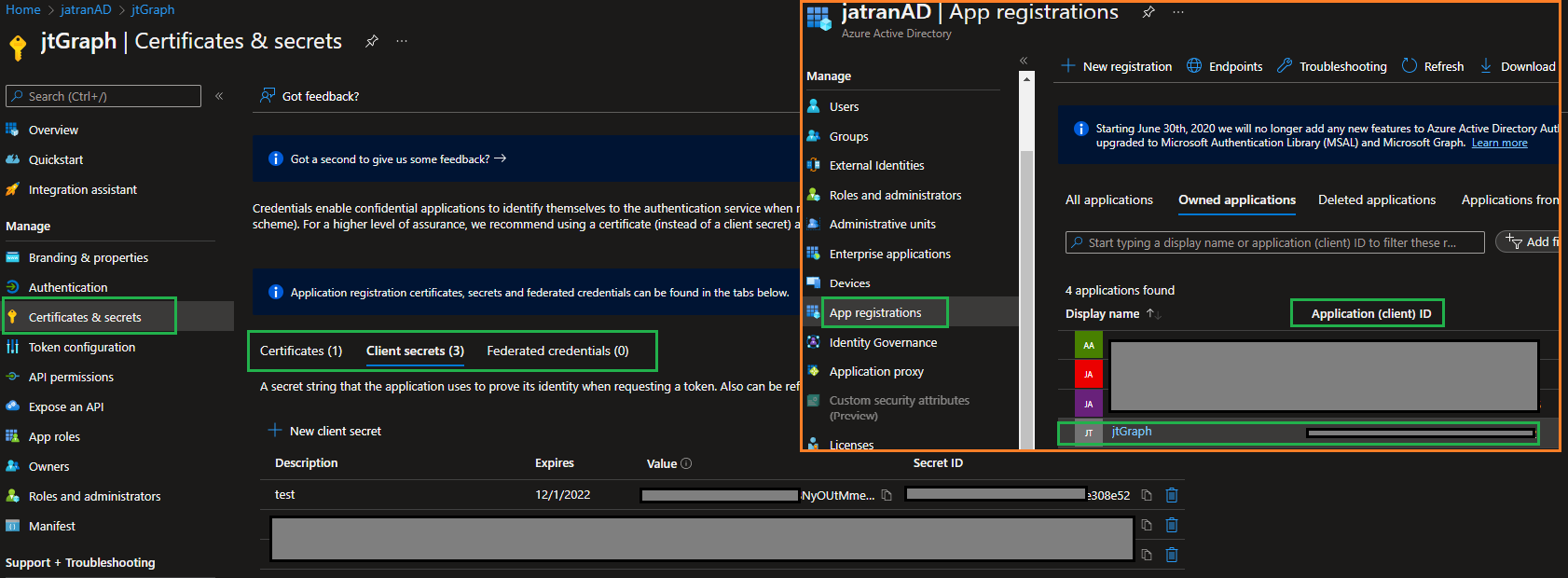 For more detailed steps on how to get these values you can reference - [Get tenant and app ID values for signing in](https://learn.microsoft.com/en-us/azure/active-directory/develop/howto-create-service-principal-portal#get-tenant-and-app-id-values-for-signing-in)
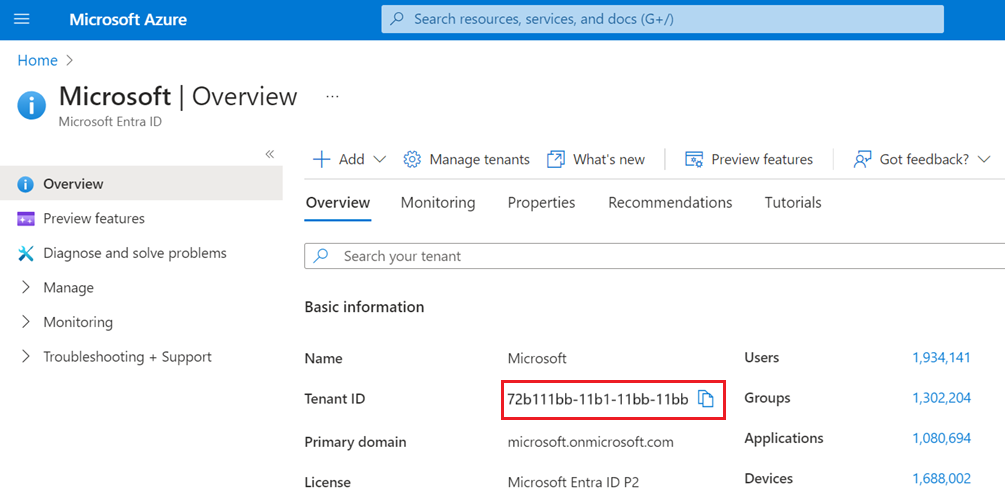 For more please see [here](https://learn.microsoft.com/en-us/azure/active-directory-b2c/tenant-management-read-tenant-name).